All informations about window 11:

What are Windows 11 new features? Here's everything you need to know

If you're wondering what you can do with these Windows 11 new features in the next generation of Microsoft software, then keep reading! This blog post will go through all the best tips to use your computer more efficiently on Windows 11.
No need to worry about Windows 11 compatibility issues as most devices will run smoothly on this new software. Just make sure you have everything backed up before upgrading so that if anything happens during the installation, you'll know how to fix it.
If you are a Windows 10 user, don't worry! You will be eligible for a free upgrade to the latest version of the Microsoft operating system. You don't want to lose any data while installing. If you're interested in trying out Windows 11, we've got a guide to help.
Windows 11 new features? Here's everything you need to know
1. Security and scanning
The Windows 11 operating system has features that are similar to those in previous versions of windows. It starts with the hardware and includes OS security, application security, user & identity protection all-around your safety devices. This section describes some features in which Microsoft has made it easier than ever for people who own Windows 10 to move over into windows 11 without having any problems when upgrading!
• Windows Security app
The Windows Security app is an easy-to-use interface that combines commonly used security features. For example, you can get virus and threat protection, a firewall, or network protection all in one place.
• Windows Security baselines
Security baselines are the easiest way to make sure your devices are protected. They include some of the most significant security settings. Security baselines include pre-configured settings, so you don't have to spend hours configuring them.
• Microsoft Defender Antivirus
Microsoft Defender Antivirus is built into Windows and helps protect devices using next-generation security. When used with Microsoft's newest endpoint protection, your device gets strong defense at its most advanced level! Plus, if you have Endpoint Manager implemented on the device, it can create policies based on the levels found in Microsoft's latest Defender for Endpoint.
• Windows Application Security
With the Windows Application Security features, you can enjoy peace of mind knowing that your system will be safe from unwanted or malicious code from running entrusted websites and Office files to protect against malware sites.
• Windows Hello for Business
Windows Hello for Business protects user identities with a PIN or biometric that stays locally on the device. Device manufacturers have been adding more hardware security features like IR cameras and TPM chipsets to help create strong security measures within user identities on organizations' devices.
When you go password less, it helps protect user identities and enforce compliance. With Windows OS, Azure AD, and Endpoint Manager, you can remove passwords for more security policies for your users while also helping support compliance policies!
2.Easier access to new and already used services
• Windows 365 Enterprise
Windows 365 is a desktop operating system that is Microsoft's cloud service. You can run an operating system just like a virtual machine from another internet-connected device including, Android or macOS.
• Microsoft Teams
Microsoft Teams include the OS that presents in the taskbar. Select it to sign in, use a personal account or an organization's one if needed. Sign in; use a personal Microsoft account or an organization's one to start the call right away with your friends, family members, or co-workers.
This Microsoft team's version is for individual accounts. For business accounts, you can deploy the app by applying MDM policy such as Endpoint Manager to manage it on a company level and provide more security features.

• Power Automate in Windows 11
Power Automate is a low-code application for desktop with OS. Users can create flows with this app that help them complete everyday tasks like saving messages to OneNote or notifying teammates when a new form response is received - all in an instant! Once you install the app, go to Settings > Apps and select all pre-installed apps for quick access.
3. Customize the desktop experience
• Snap Layout, Snap Groups
When you want to customize the size of your apps, open an app and hover over the Minimize/Maximize option. Customize the app's layout to suit your needs.
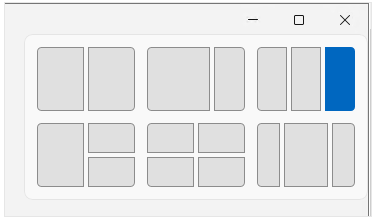
When you add all your favorite apps to a Snap layout, it saves to a group. It's there for easy access – when hovering over the app with any existing Snaps layout.
This feature is called Snap Groups. This is a way for you to organize your favorite apps in a uniform layout. You can select a group, and then tap an app from that particular group. The more snap groups you create, the easier it will be to switch between them by selecting a snap group.
The Settings app has several options for managing your Snap features. There is a section in the system menu where you can find multitasking, which will allow users to manage various Snaps features.
• Start menu and taskbar
The Start Menu is a customizable area that contains some applications by default. You can easily customize the layout to suit your needs. Organizing your apps is easier than ever with pinned tabs.
You can pin commonly used applications, such as Microsoft Teams or Outlook, to speed up access. You can easily use customized start menu layouts for devices in an organization. Start menu features can be activated using Settings app > Personalization.
• Widgets
Widgets are available on the taskbar with individual feeds like weather, calendar and more for your convenience.

• Virtual desktops
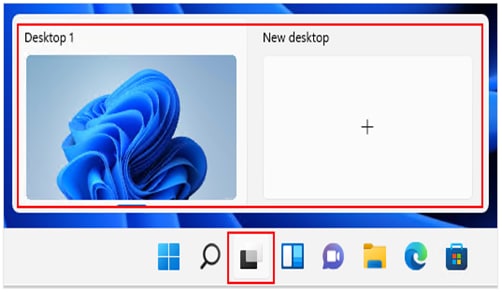
The main panel is the window that appears on the screen after clicking the Start button. You can create new desktops by selecting them and then choosing "Create New Desktop". To do something, use the desktop to open different applications. For example, you can set up a Travel Desktop with travel-focused websites and apps.
4. Manage your similar and new apps updates
• With Windows 11, users of the latest version of the Microsoft operating system can download and install Android™ applications from the Microsoft Store. You'll use your favorite Android apps on a Windows device with the new subsystem for Android. It is similar in function and design to other Microsoft Store apps.
• When users open the Microsoft Store, they can install apps for Android. After installing the Amazon App Store to their Microsoft Store account, users can browse for downloadable apps like you would find in Google Play.
• Your favorite Windows 10 apps can now run better on Windows 11. UWP, Win32 and WPF desktop apps will continue to work with MSIX packages.
• Continue installing Windows applications through the Windows Package Manager. Microsoft's Azure is a better choice for bringing desktops and apps to life.
• If you run devices using Endpoint Manager, chances are you are familiar with the Company Portal application. The Company Portal app is your private organization's apps repository in Windows 11.
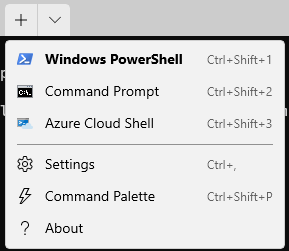
• A Windows Terminal application is included with the OS. In earlier versions of Windows, it is downloaded separately from the Microsoft Store. This app allows you to run Windows PowerShell commands, use Command Prompt and Cloud Shell. You can select your command-line application when you open a new tab.
• The Microsoft Edge browser includes the operating system, and it is the default. Internet Explorer isn't available in Windows 11.
• Many of our users and customers still use Internet Explorer (IE) that is no longer available in Windows 11. You can use group policy or an MDM provider for configuring Microsoft Edge settings.
5. Deployment and servicing
• Install Windows 11
The way you install Windows 10 can use to install the latest version of Windows 11.
• Windows Autopilot
With Autopilot, you can simplify the process of getting new devices by setting them up and pre-configuring with just a few clicks. Autopilot can help you get your company up and running with a remote workforce.
• Microsoft Endpoint Manager
Microsoft Endpoint Manager is a provider of MAM and MDM for mobile applications. Microsoft Endpoint Manager helps you manage your devices and apps.
• Windows Updates and Delivery optimization
Windows updates and delivery optimization helps you run the updates that come with your device. You can install updates on your Windows, including Endpoint Manager and Group Policy.
Part 2. How to Check Window 11 Compatibility?
How excited are you for the new Windows 11? I can't wait! Microsoft has announced that a vast majority of laptops and computers on the market will be compatible with this latest operating system. The Windows 11 upgrade has been a long-awaited release, but the wait is almost over!
The brand has also released a list of minimum requirements and processors that support this latest operating system. If you want to know whether your Windows 10-powered laptop or PC is compatible with Windows 11, there some methods for it. Take a look at each method to determine which one works best for you!
Method 1
Before upgrading to Windows 11, make sure that your current PC is compatible with the upcoming operating system. Microsoft has made it easy to find if your laptop or PC will be compatible with Windows 11 or not. To start, you can follow these steps to find out if your laptop or PC is compatible:
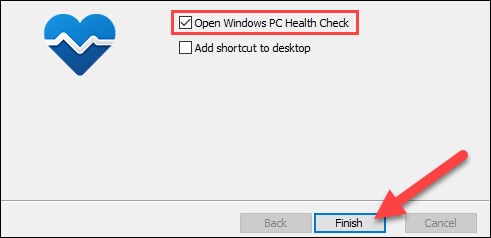
Step 1: Visit the Microsoft website and click on Windows 11. Check the compatibility section and Download the app. Now install the Microsoft PC Health check app, finally click on the finish button.
Step 1: Visit the Microsoft website and click on Windows 11. Check the compatibility section and Download the app. Now install the Microsoft PC Health check app, finally click on the finish button.
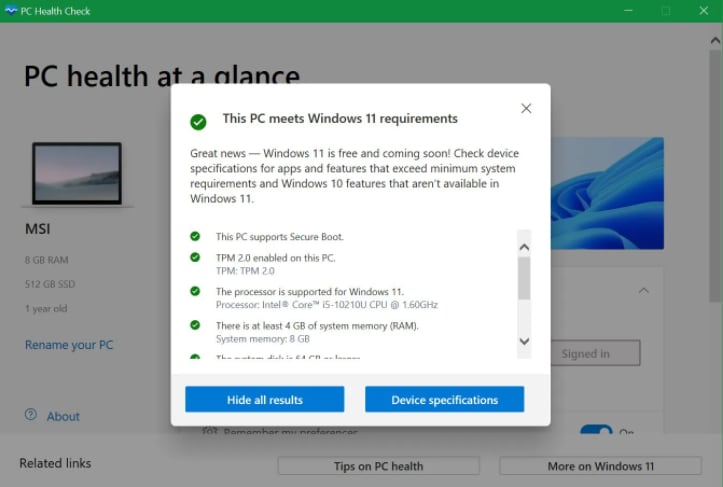
Step 2:The app home page pops up "PC health at a glance." At the top of it is an introducing Windows 11, you can click check now button for more information.
Method 2: Use the WhyNotWin11 app to see Windows 11 adaptability
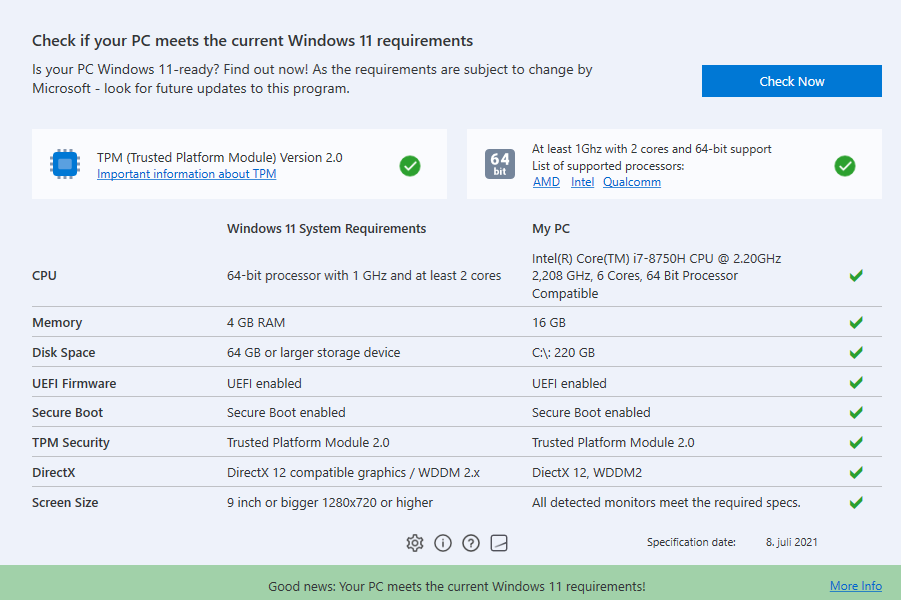
It's time to get your game on! WhyNotWin11 is the perfect app for anyone who wants an alternative experience with PC Health Check. It has a less friendly interface, but you'll receive more information and be able to go into detail about various compatibility issues.

Method 3: Verify Microsoft's list of system designations for Windows 11
Are you wondering if your current PC will be able to run Windows? Check out this list of system specifications on Microsoft's website. If it matches, you can download the free windows 11 update when available!
Part 3. Is Windows 11 Download Free?
Are you still waiting to update your computer with Microsoft's latest operating system, Windows 11? If so, then the installation assistant is here for a quick and easy download. The new operating system, Windows 11, has just been released as a free optional upgrade for computers running Windows 10. Are you ready to upgrade your device with Windows 11? Click here for more information about downloading and installing Windows 11 on your device today!
Conclusion
Windows 11 is the latest and greatest
version of Microsoft's operating system, with a long list of new
features. It's packed with new features like improved security,
scanning, access to services for old and new apps, customization of your
desktop experience, management tools for updates on any device you're
using - including mobile devices! There are also compatibility issues
that need to consider before upgrading.I suggest you if your pc is not compactable for this Os so do not install it because in this cause it become harmful for your pc.